
Is it really possible to greatly improve your World of Warcraft gameplay through customized UI? You’ve probably heard how tweaking your interface settings can enhance your performance and experience.
You’ll find that optimizing your UI, using tools like Bartender4 and ElvUI, can indeed streamline your actions, making commands more intuitive during vital encounters. Don’t you want to explore how you can bring your game to a new level of efficiency?
Key Takeaways
- Familiarize yourself with default UI components such as action bars, mini-map, health bars, and inventory bags for efficient interaction.
- Use modification tools like Bartender4, ElvUI, Twitch Client, Addon Control Panel, and Deadly Boss Mods for greater customization and control.
- Adjust display settings, action bars, and unit frames via the Interface Menu to match your play style and improve visibility.
- Gradually experiment with settings and add elements incrementally to create a comfortable and functional UI layout without overwhelming the interface.
- Troubleshoot common UI issues by ensuring addons are up-to-date, reorganizing UI elements, hiding less-used features, and resetting UI to default when necessary.
Understanding the Default WoW UI
Diving into the world of Azeroth, it’s essential to grasp the fundamentals of the default World of Warcraft User Interface (UI). The user interface is your gateway to the game, shaping your wow experience and raid performance. It’s the game interface that translates your actions into in-game commands, ultimately determining the quality of your gameplay experience.
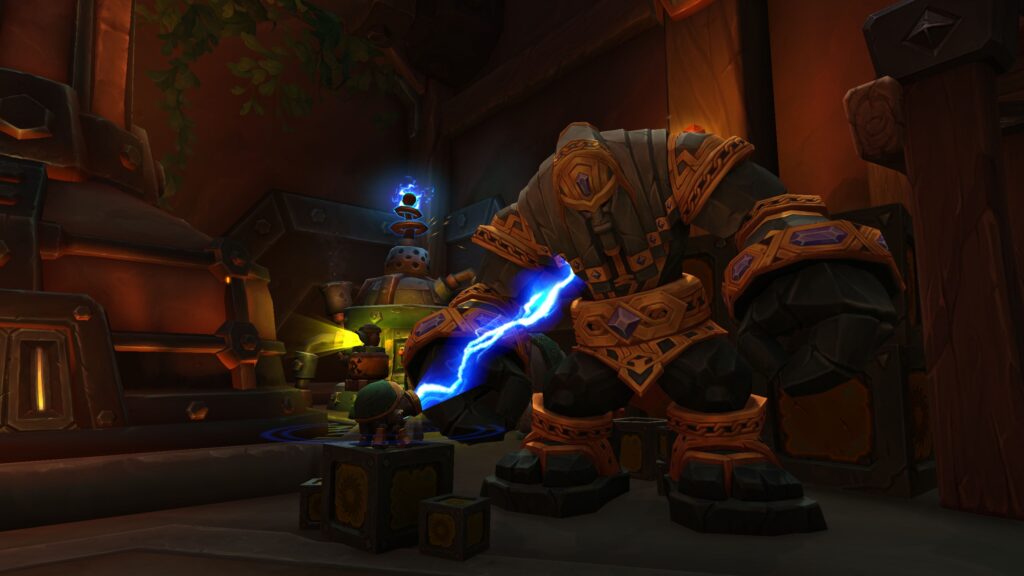
The default WoW UI is designed to offer an enjoyable experience for all players, regardless of their skill level. From your action bars to your mini-map, every element is strategically placed for maximum efficiency. Your action bars at the bottom of the screen hold the key to your abilities and spells. The mini-map, located at the top right corner, guides you through your quests and highlights points of interest.
Your character’s health and mana bars, your target’s information, your chat window, and your bags – all these elements form an integral part of the UI, impacting your gameplay. Mastering the default WoW UI isn’t just about knowing where everything is; it’s about understanding how these elements interact to enhance your performance in the game. So take the time to familiarize yourself with it – your raid performance will thank you.
Benefits of Customizing Your UI
Once you’ve got a handle on the default UI, you might wonder why you’d want to customize it. Well, customizing your UI can enhance your gaming experience in several ways. For one, it allows you to tailor the game interface to your personal preferences, which can make the game more enjoyable and intuitive to play.

Taking simple steps to customize your UI can lead to peak performance in your game experience. When your UI is fine-tuned to your playstyle, you’ll find that commands and actions become second-nature, allowing you to react faster and play more effectively.
| Benefits | Description |
|---|---|
| Improved Efficiency | Customizing your UI helps streamline your gaming actions, allowing you to perform tasks faster. |
| Enhanced Control | A tailored UI provides you with greater control over your game, improving your gameplay experience. |
| Personal Satisfaction | There’s a sense of satisfaction that comes from having a UI that’s tailored to your personal preferences. |
Popular Interface Modification Tools
Having understood the benefits of customizing your UI, you might be wondering how you can do it. Don’t worry, there are ample tools out there to help you modify your interface to your liking.
Bartender4, for instance, is a hugely popular tool. It lets you completely reconfigure your action bars, offering a much cleaner and more efficient layout. Then there’s ElvUI, an extensive UI overhaul that’s highly customizable. It’s a favorite among WoW veterans for its sleek design and ease of use.

For managing your addons, there’s nothing better than the Twitch Client. It helps you keep track of and update all your addons. Plus, it’s straightforward to use, even for beginners. But, if you’re looking for something more lightweight, consider Addon Control Panel. It allows you to enable, disable, and configure your addons in-game without having to log out.
Lastly, don’t forget about Deadly Boss Mods. It’s an indispensable tool for any raider, providing timers, warnings, and vital boss fight mechanics.
Step-by-Step Guide to UI Customization
Let’s get you started on customizing your World of Warcraft UI. It’s easier than you might think. Follow these steps to make your UI more personal and efficient:
- Access the Interface Menu: Press the ‘Esc’ key to open the game menu, then click ‘Interface’ to access customization options. Here, you’ll have the freedom to tweak aspects of your UI to your liking.
- Adjust Display Settings: Under the ‘Display’ tab, you can change the scale of your UI. A smaller scale gives you more screen space for the game world, while a larger scale makes the UI elements easier to see.

- Customize Action Bars: Under the ‘Action Bars’ tab, you can set up your abilities in a way that suits your play style. You can even add additional action bars or hide the ones you’re not using.
- Modify Unit Frames: In the ‘Unit Frames’ tab, you can adjust the display of health bars, target frames, and party frames. This can be especially handy in group content.
Troubleshooting Common UI Issues
While you’re customizing your World of Warcraft UI, you might encounter some common issues. Some addons may not work as expected, or your interface might look cluttered or confusing. Don’t panic, it’s normal and there are solutions.
Firstly, if an addon isn’t working, check if it’s up-to-date. Outdated addons cause most problems. Use the Twitch app to manage and update your addons easily.
Next, if your UI looks cluttered, it’s time to reorganize. Identify the elements you use most and position them centrally. Lesser-used elements can be moved to the periphery. Remember, you can make elements invisible until you mouse-over them, saving screen space.
Finally, if your UI feels confusing, you’ve probably added too many elements too fast. Scale back, add one element at a time, and get comfortable before adding another.
If all else fails, reset your UI to default and start again. It’s a drastic step, but sometimes it’s the best way to solve persistent issues. Remember, customization is about improving your experience, not complicating it. Take your time, and before long, you’ll have a UI that fits you like a glove.
Conclusion
In mastering the World of Warcraft UI, you’ve opened doors to heightened gameplay. You’ve customized your interface, tweaked action bars and transformed commands with tools like Bartender4 and ElvUI. With regular updates and experimentation, you’ve built an intuitive, efficient layout. Your gameplay is now streamlined, responsive, and ultimately more rewarding. Keep troubleshooting those pesky UI issues, and never stop perfecting your interface. Remember, in the World of Warcraft, your UI is your ultimate ally.